Set up Chylo in three steps
Install the app, enter your server address, sign in. It takes about two minutes.
Contact your provider for the server address, and have it ready before you start.
Install Chylo from Google Play
On the TV, open Google Play, search for “Chylo” and install Chylo for Android TV. From a phone or computer signed in to the same Google account, this button sends it to the TV:
Android TVGet it on Google Play
Without Google PlayInstall the Downloader app (by AFTVnews) on the TV, open it and type this code, then allow the install:
3997783
Open Chylo and choose “Enter server address”
It is the first button on the welcome screen.
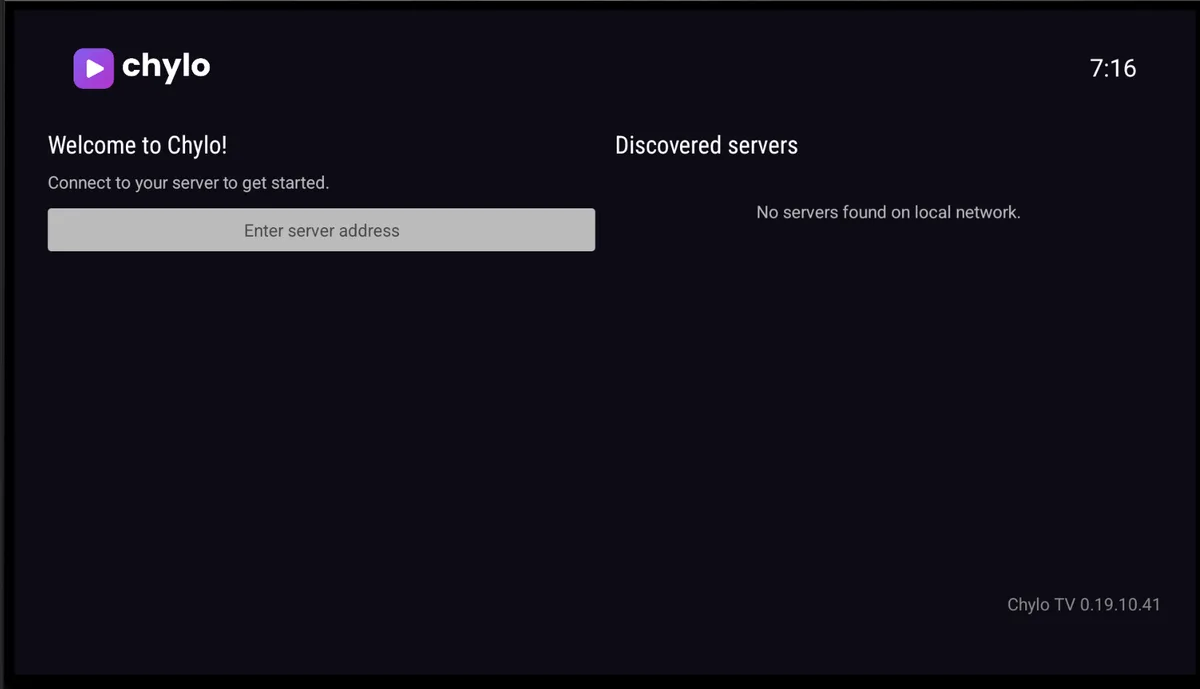
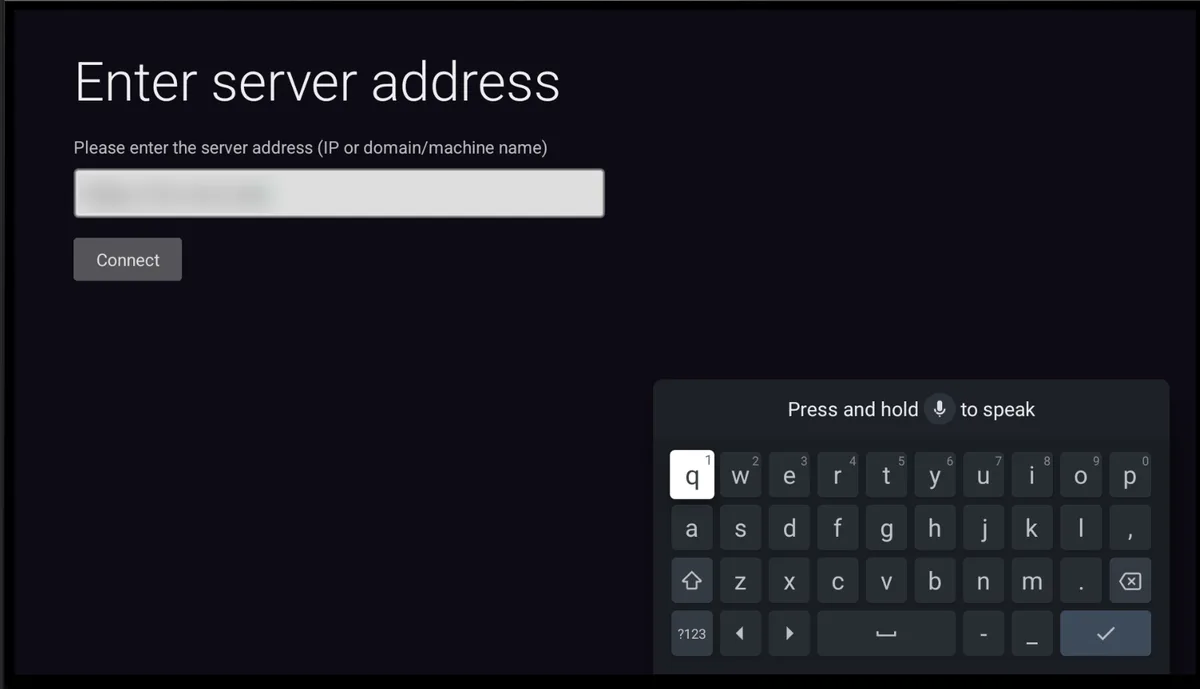
Type your server address and press Connect
Type it exactly as written, starting with https://
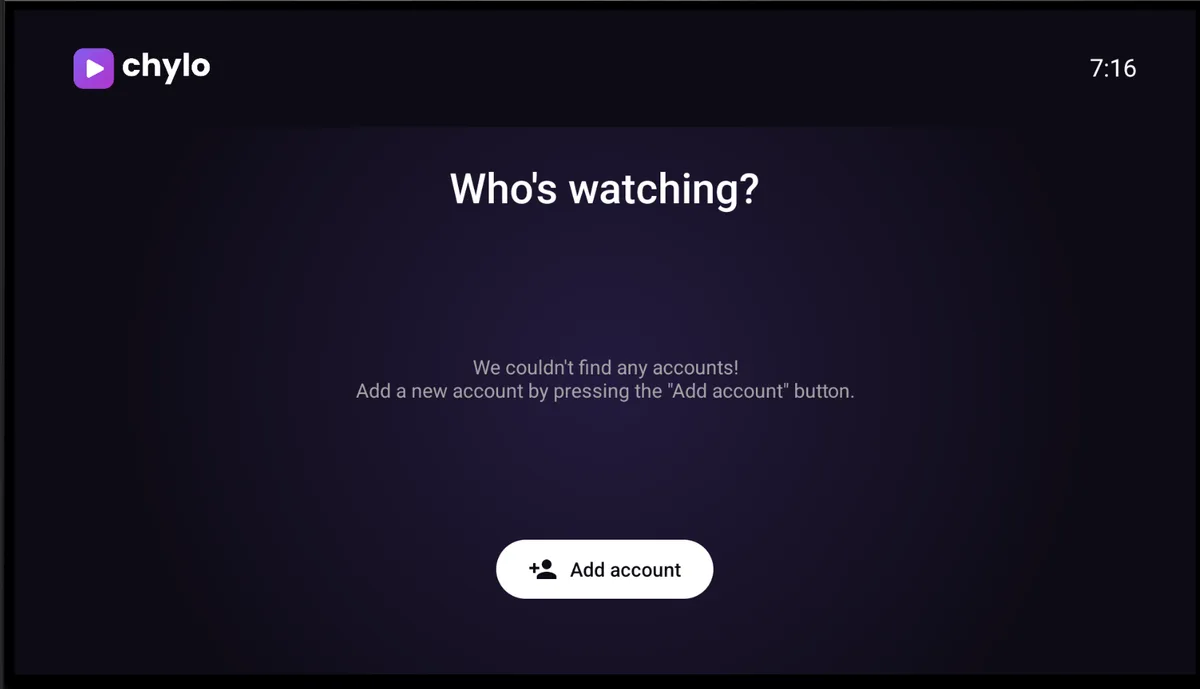
Choose “Add account”
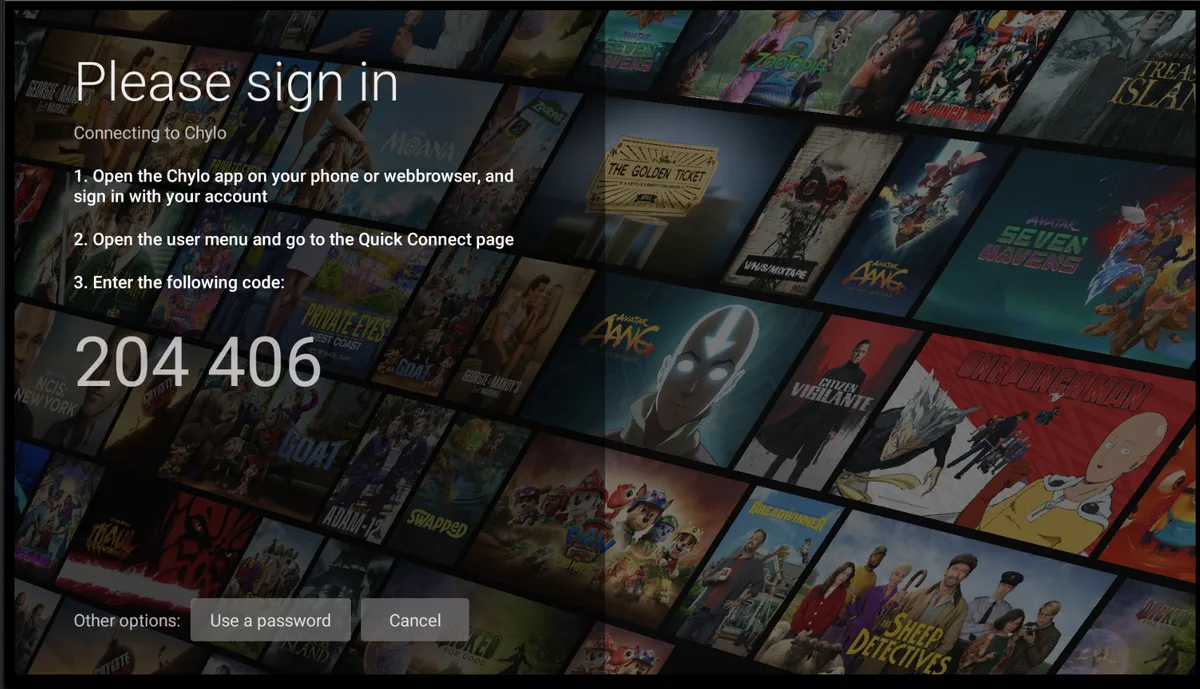
The TV then shows a six-digit code.
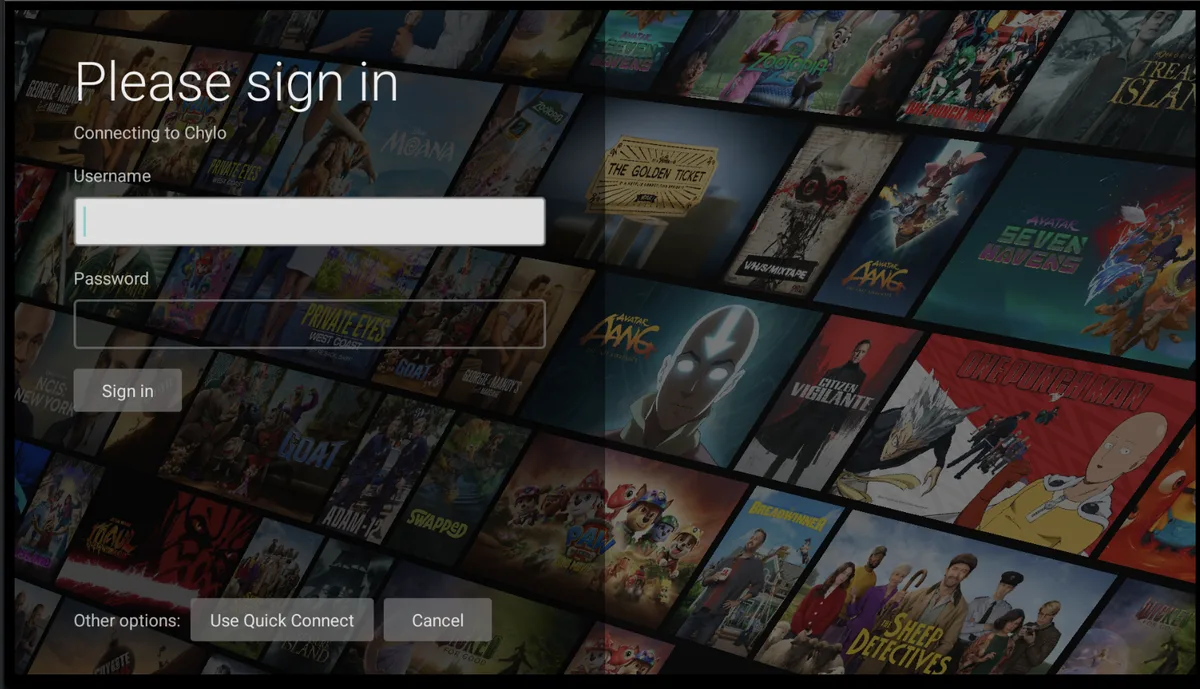
Sign in
With the code: open Chylo on your phone or in a browser, sign in, open the user menu, choose Quick Connect and type the code shown on the TV.
Without a phone: choose “Use a password” on the TV, then type your username and password.
Install Chylo from Google Play
Open Google Play on the phone or tablet, search for “Chylo” and tap Install, or use this button:
Phones and tabletsGet it on Google Play
Without Google PlayInstall the Downloader app, open it and type this code, then allow the install. Or open this link in the phone’s browser:
2404686
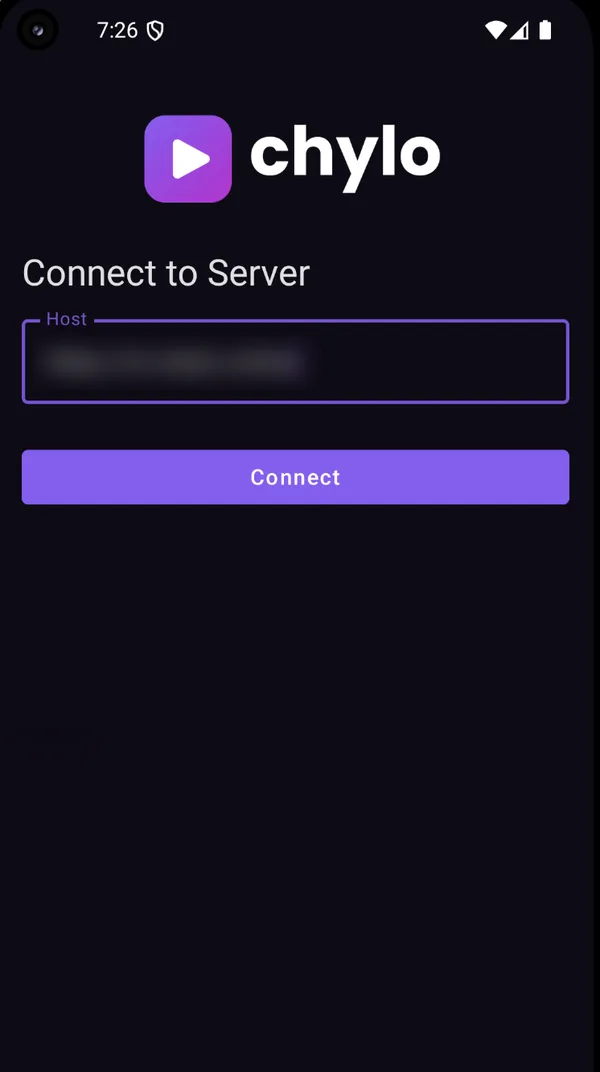
Type your server address and tap Connect
Type it exactly as written, starting with https://
Sign in
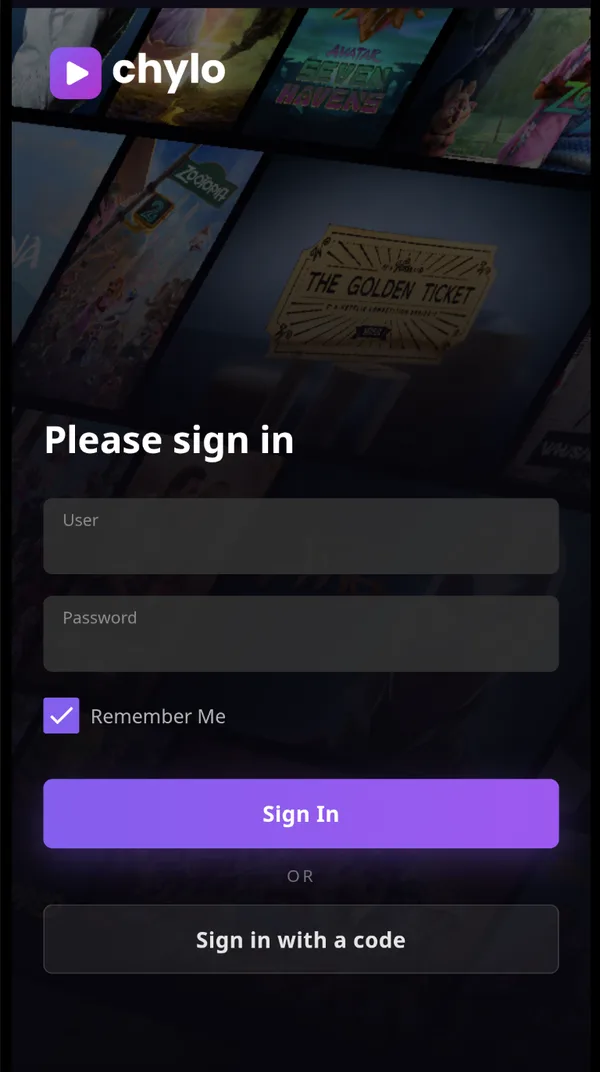
Type your username and password, then tap Sign In. “Sign in with a code” also works when you are already signed in on another device.
If it says “Unable to connect to server”
- Check the address letter by letter. It starts with https:// and has no spaces.
- Check the date and time of the device. A wrong date blocks secure connections.
- Check that the device is online: open any website or another app.